Profiles, kids and PIN
Profiles
Everyone at home can have their own profile, with their own favourites, Continue watching and Home.
- Open Profiles: On the TV or Windows app, open Settings, then Playlists, then Profiles.
- Add one: Choose Add profile and type a name. For a child, turn on Kids.
- Save: Choose Save.
With two or more profiles, the app asks Who's watching? when it starts.
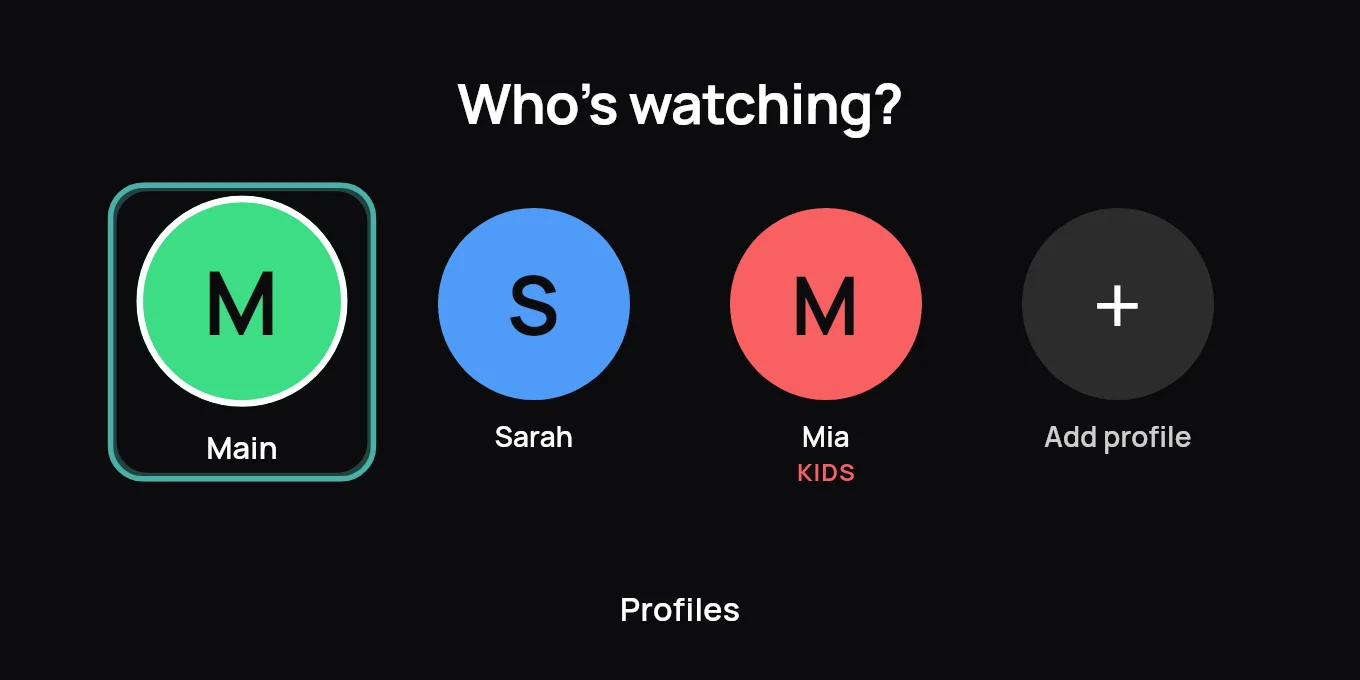
On the phone, tap Profile at the bottom. Tap a profile under Who's watching to switch, or Edit to add one. In the web player they are called watchers: click the round letter at the top right, then My profile.
Kids profiles
A kids profile hides adult content. When a PIN is set, leaving a kids profile asks for it.
Set a PIN
- Open Parental: On the TV or Windows app, open Settings, then Parental.
- Choose a PIN: Type 4 to 8 digits and choose Save PIN.
Once the PIN is set, you can also:
- Lock the app on open: The PIN is asked every time the app starts.
- Hide adult content: Adult channels and films disappear from the lists.
- Lock a category: In Live TV, hold OK on a category and choose Lock with PIN.
On the phone, tap Profile, then Parental PIN. In the web player, the PIN is under My profile, Parental controls.
Profiles, the PIN and the locked categories follow you to your other devices on the same subscription.