Sign in
You sign in once on each device. After that the app opens straight to your channels.
With an activation code
- Choose the code: Open the app. On a TV or on Windows, choose Activation code at the top.
- Type it: Type the code exactly as your provider sent it.
- Wait: It connects by itself once the code is complete. On the phone, tap Connect.
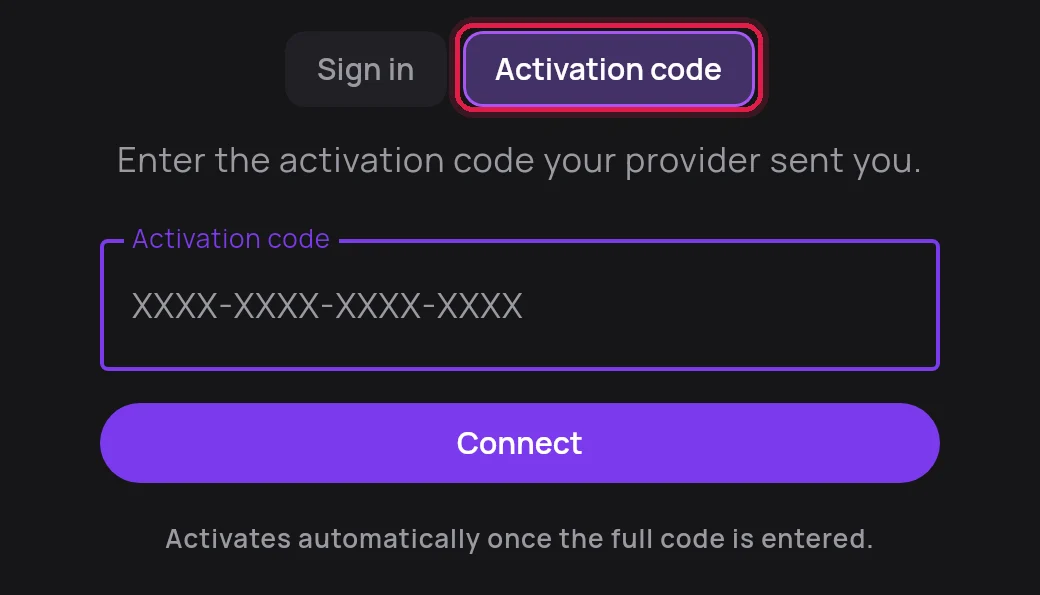
The first time, the app loads your channels, films and guide. That takes a minute. In the web player, choose the Activation code tab and press Sign in.
Let your provider send it
You don't have to type anything. The sign-in screen shows a TV code, for example F6GB-MDN1-WGHQ. On a TV it is on the right, on a phone under the form.
- Open the app: Leave it on the sign-in screen.
- Send the TV code to your provider: Your provider types it in and sends your playlist to this app.
- Wait: After a few seconds the app sets itself up and loads your channels.
With a username and password
- Phone app: Choose Xtream login. Fill in the Host (the server address from your provider), your Username and Password, then tap Connect.
- Web player: Choose the Username tab, type both, and press Sign in.
- TV and Windows apps: These use an activation code. Ask your provider for one; it only takes them a minute.
Code not accepted? Check it letter by letter. Activation codes are letters only, no numbers (the TV code has numbers, but you never type that one). If it still fails, your provider can check it or send a new one.